
How to auto-sync trades from Tradovate to TradesViz trading journal?
Auto import trades from Tradovate (and NinjaTrader Bokerage)
In this post, we will explore how to pair your TradesViz account with Tradovate.
This post assumes that you have read the basics about auto importing in TradesViz.
Here's a complete video on how to connect to Tradovate:
Video: Tradovate Sync Tutorial
Update: This method works even if you are using NinjaTrader brokerage, just enter your NinjaTrader credentials on the Tradovate page when you are asked for authentication
Once you select your trading account and broker as "Tradovate" in the trade auto-import page, a popup box will appear when you click on the "Connect account" button.
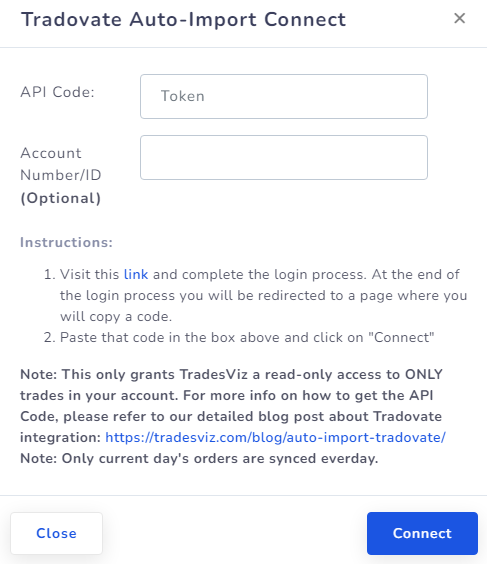
The purpose of this blog post is to guide you to get this API code from the Tradovate website. Here are the steps you need to follow:
- Click on the link in the instructions in the popup box shown in the picture above.
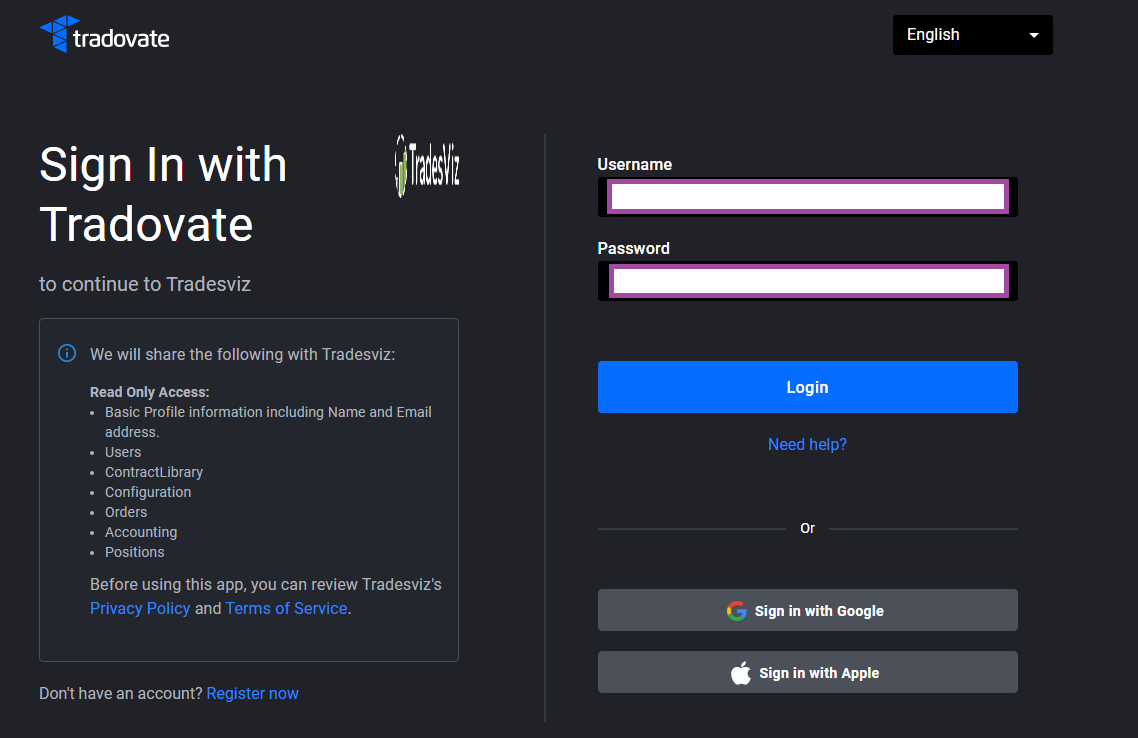
- This will redirect you to a secure Tradovate webpage where you need to enter your credentials to authenticate that you are the user of the Tradovate account. Note that we have no access to any information in the subsequent pages after you click on the link in the instructions - all actions are done via Tradovate's secure pages. You can check the URL in the browser to verify this.
- Fill in your login information, and finally you will be redirect to the TradesViz page with a code after successful login.
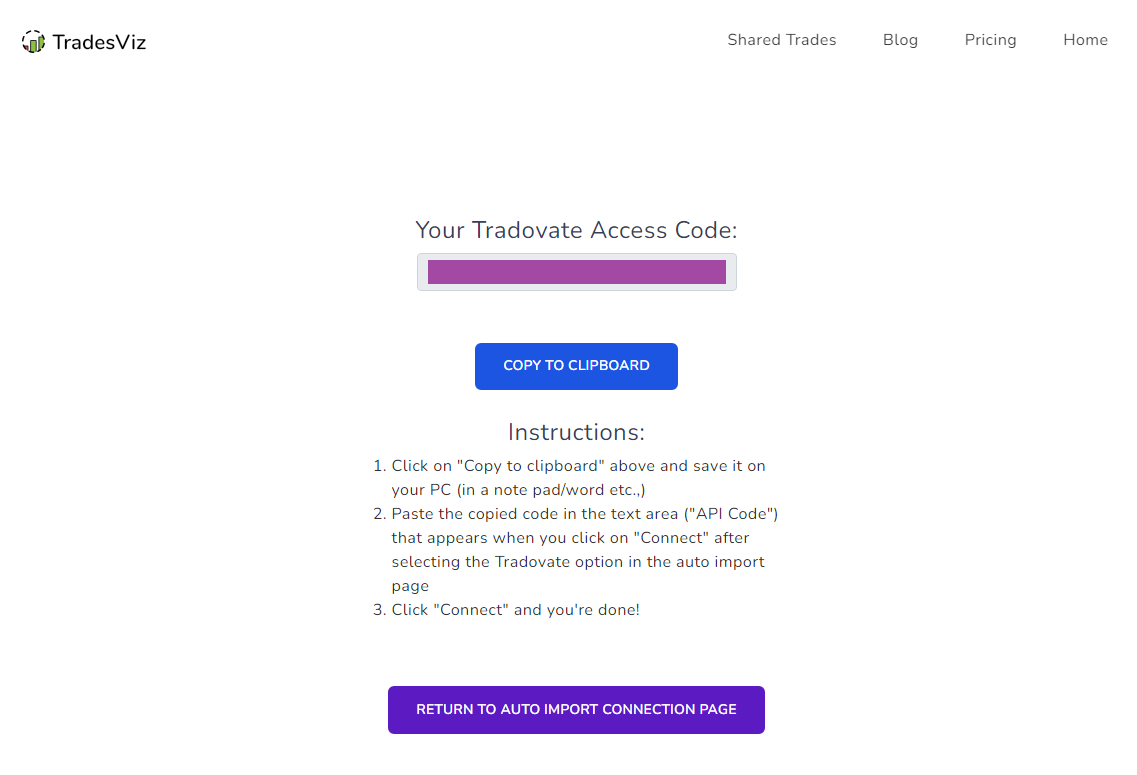
- On this page, you will have to copy the code and paste it into the popup box shown as the first image in this blog post.
- Once you return to the tradesviz.com's import page, click on the "Auto-import trades" tab, follow the same instructions of selecting the trading account and brokerage platform (Tradovate), and now paste the code in the text field along with the account number of the account you want to sync.
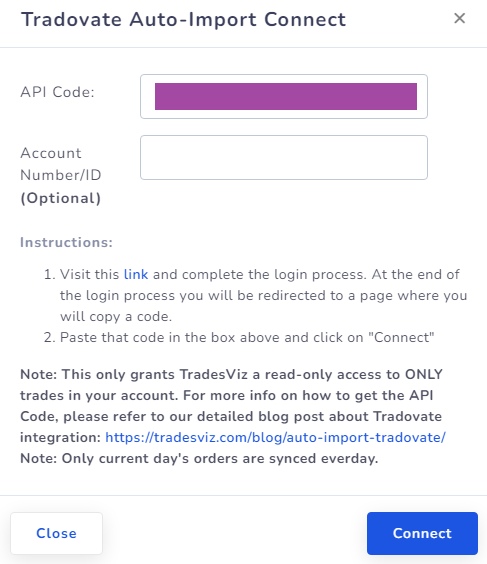
Note: This works for both live and demo accounts.
To get the account ID (NOT your username) check the top right corner of your Tradovate dashboard or in your Ninjatrader brokerage website login:
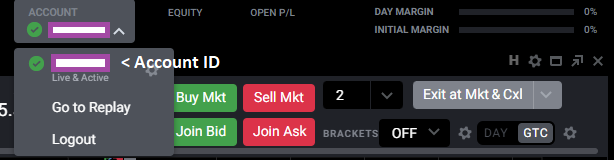
For demo accounts, please make sure to enter your account ID with the prefix 'demo_'. Example: If your account ID is ABCD123, then enter demo_ABCD123. Caps sensitive. If you entered incorrect information, start the process over again and try connecting with a NEW login API code. DO NOT USE the old/previous API code.
Finally, click "Connect" and in a few seconds, you should receive a connection successful message which means the linking was successful. If not, please contact us at support@tradesviz.com.
Note that this access read-only to the information shown in step 3. We have no control over your account and cannot access ANY information other than what is given to us from Tradovate.
Update: April 2024
If you don't know or cannot get your account ID correctly, don't worry. You will now automatically see the list of accounts linked to your account when you paste the API code. Once you see the list, you can select the account and click "Connect" to complete the connection process. Here's a video showing this:
Video: Account Selection Update
Update Aug 2024:
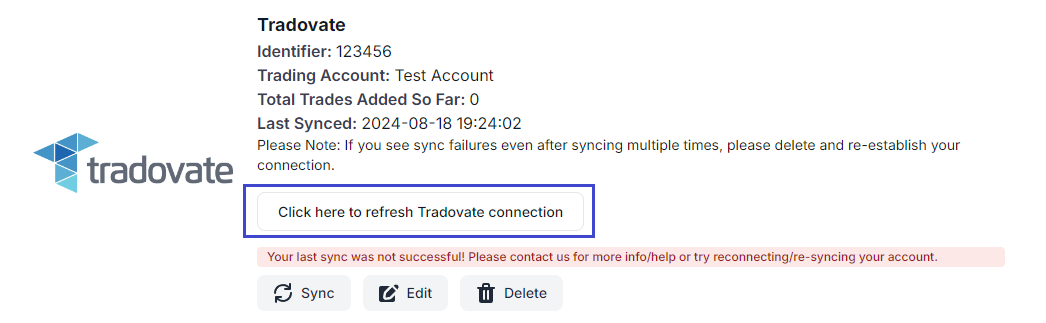
You can now do a one-click refresh for any failed connection by clicking on the refresh button that automatically appears when a Tradovate connection expires. No need to delete and re-establish a connection by inputting your account IDs when you see the sync failure message.
Update Mar 2025:
For all the prop firm traders with many accounts, we have introduced an automated multi-connection + multi-account-creation feature.
Here's how it works.
- Paste the login code
- Check "Connect multiple accounts at once? option
- You will see a drop-down menu with the accounts you can select. Select all the accounts you need
- Click connect
Video: Multi-Account Connection
What the system does internally:
- It creates unique trading accounts (with the same name as the account ID) automatically for each connection automatically
- Adds the connection to the newly created trading accounts automatically
You can now sync normally by clicking on sync all accounts individually!
When a connection expires, refreshing just ONE connection will refresh ALL other connections!
We hope this makes connections MUCH easier to manage in TradesViz for traders with large no.of accounts!
Frequently Asked Questions
How do I connect my Tradovate account to TradesViz?
To connect your Tradovate account to the TradesViz online trading journal, navigate to the auto-import page, select Tradovate as your broker, click 'Connect account' to open a popup, then follow the link to Tradovate's secure authentication page. After logging in with your credentials, copy the provided API code and paste it back into TradesViz along with your account number to complete the connection.
Can I use TradesViz with NinjaTrader brokerage accounts?
Yes, the TradesViz trading journal fully supports NinjaTrader brokerage accounts. Simply select Tradovate as your broker in the auto-import settings and enter your NinjaTrader credentials when prompted on the Tradovate authentication page. The same API connection method works seamlessly for both platforms.
Does TradesViz support both live and demo Tradovate accounts?
Yes, the TradesViz trade tracker supports both live and demo Tradovate accounts. For demo accounts, you need to add the prefix 'demo_' to your account ID (e.g., if your account ID is ABCD123, enter demo_ABCD123). This ensures proper synchronization of your demo trading data with your trading log.
Where can I find my Tradovate account ID for the connection?
Your Tradovate account ID (not your username) can be found in the top right corner of your Tradovate dashboard or on your NinjaTrader brokerage website login page. As of April 2024, TradesViz's trading journal automatically displays a list of your linked accounts after you paste the API code, making account selection even easier.
Is the connection between Tradovate and TradesViz secure?
Yes, the connection is completely secure. TradesViz uses read-only access through Tradovate's secure authentication pages. Your login credentials are entered directly on Tradovate's website, not on TradesViz. The online trading journal cannot access any information beyond what Tradovate provides through the API, and has no control over your trading account.
What should I do if I enter incorrect account information?
If you enter incorrect information when connecting to the TradesViz trading log, you should start the process over again with a NEW login API code. Do not reuse the old or previous API code. Generate a fresh API code through the Tradovate authentication process and ensure all account details, including proper capitalization, are entered correctly.
How do I refresh an expired Tradovate connection?
As of August 2024, TradesViz's trade tracker includes a one-click refresh feature for expired Tradovate connections. When you see a sync failure message, simply click the refresh button that automatically appears. This eliminates the need to delete and re-establish the connection or re-enter your account IDs, streamlining your trading journal maintenance.
What happens after I successfully connect my accounts?
Once you successfully connect your Tradovate account to the TradesViz online trading journal, you'll receive a 'connection successful' message within a few seconds. Your trades will then automatically import into your trading log, allowing you to analyze your trading performance, track statistics, and generate reports without manual data entry.
Can I connect multiple trading accounts to TradesViz?
Yes, the TradesViz trading journal supports multiple account connections. When you paste your API code, you'll see a list of all accounts linked to your Tradovate credentials. You can select the specific account you want to connect and click 'Connect' to establish the link for that particular trading account in your trade tracker.
What should I do if the connection fails?
If your connection to the TradesViz trading log fails, first verify that you've entered the correct account ID (including the 'demo_' prefix for demo accounts) and used a fresh API code. If issues persist after following all steps correctly, contact TradesViz support at support@tradesviz.com for assistance with your trading journal setup.
Updated on: 15/01/2026
Thank you!