
How to auto-sync trades from Charles Schwab/ThinkorSwim to TradesViz trading journal?
Quick Start
To auto-sync your Charles Schwab account, visit https://tradesviz.com/import/.
Use the first dropdown to choose your trading account, the second dropdown to choose Charles Schwab,
then switch to the Auto-Sync tab and follow the steps below.
You can also open Import/Export from your profile menu in the top-right corner.
Auto-Sync Setup Instructions
In this post, we will explore how to pair your TradesViz account with a Charles Schwab trading account.
This post assumes that you have read the basics about auto importing in TradesViz.
Here's a complete video on how to connect to Schwab:
Once you select your trading account and broker as "Schwab" in the trade auto-import page, a popup box will appear when you click on the "Connect account" button. Here are the steps you need to follow to establish a connection to your Schwab account(s) if you don't have any existing working Schwab connection yet:
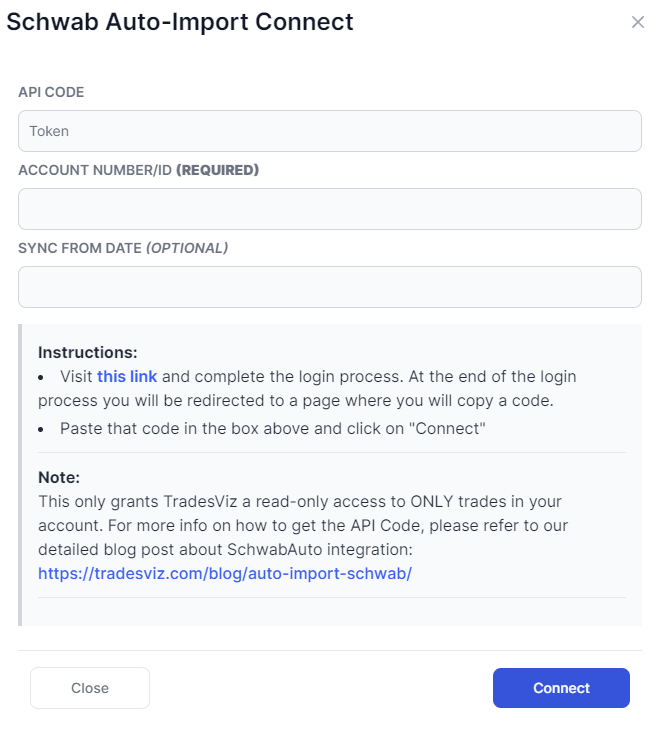
- Fill in the account number (this is 8 digits - you can get it from the Schwab dashboard or from TOS) and optionally fill in the sync from date (i.e the date from which you want the trades to be synced)
- Account ID is the account number (not your Schwab username) and it does NOT have any special characters (if your account number is 1234-5678, then enter 1235678)
- You can get the account ID by logging into your Schwab account > Move Money > Routing Numbers and Direct Deposits, the account number would be the last 8 digits of the long account number there.
- Click on the "here" link in the first step in the instructions in the popup box - this will validate your data
- Now click on "this link" in the second step in the instructions in the popup box - this will redirect you to Schwab website to complete the authentication process
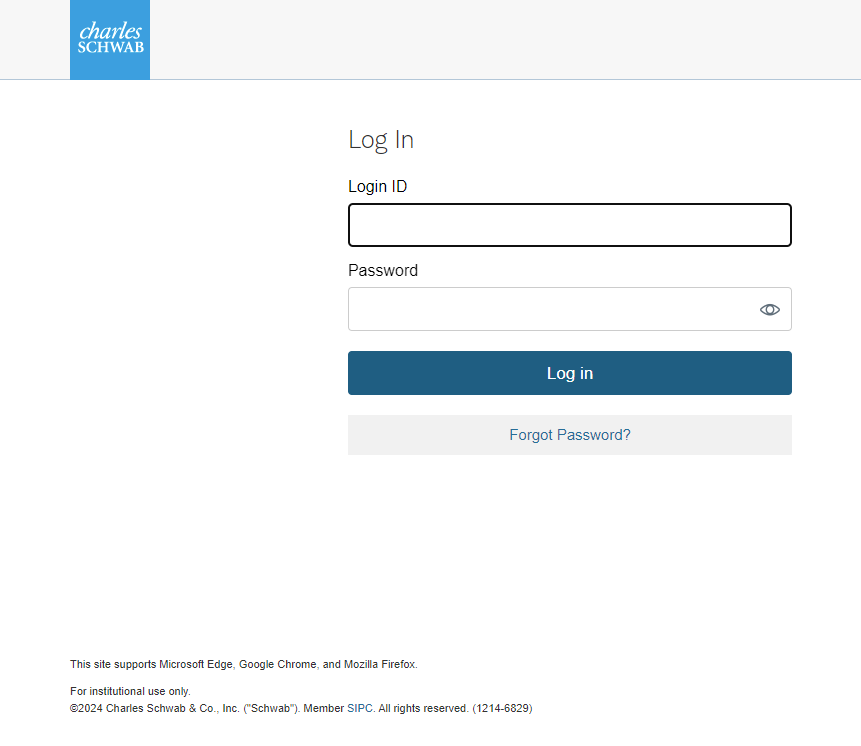
- Fill in your information, follow the security checkups (one-time-password authentication), and finally, you will arrive at a window that asks for your confirmation on whether you give us read-only access to your account's orders and executions.
- When on the accounts selection screen, make sure to select ALL the accounts and also check the "automatically link new Schwab accounts in future" option. This step is crucial to make sure sync from multiple accounts works correctly on TradesViz.
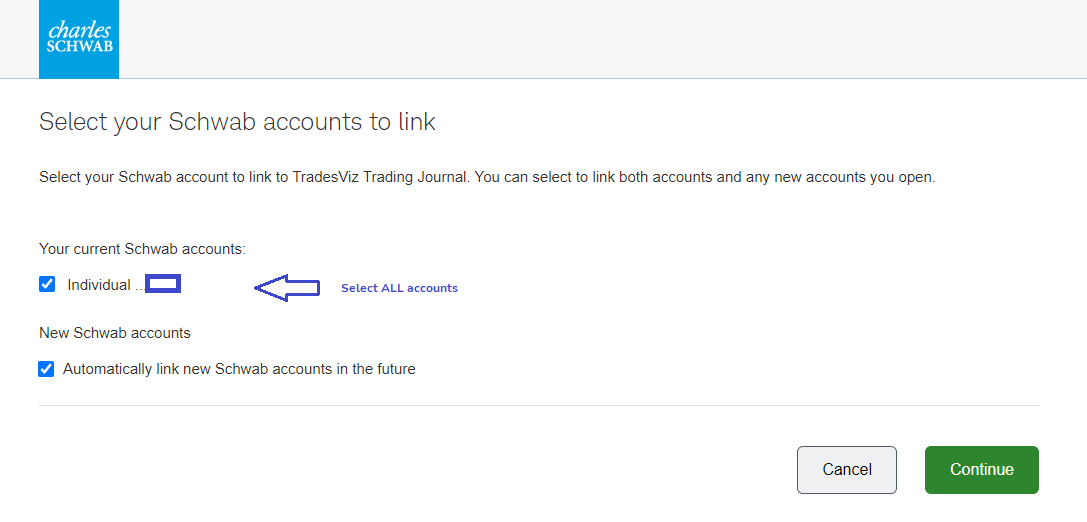
- Click on Allow/Confirm" and you will now be redirected back to TradesViz's import page with your connection ready to be synced.
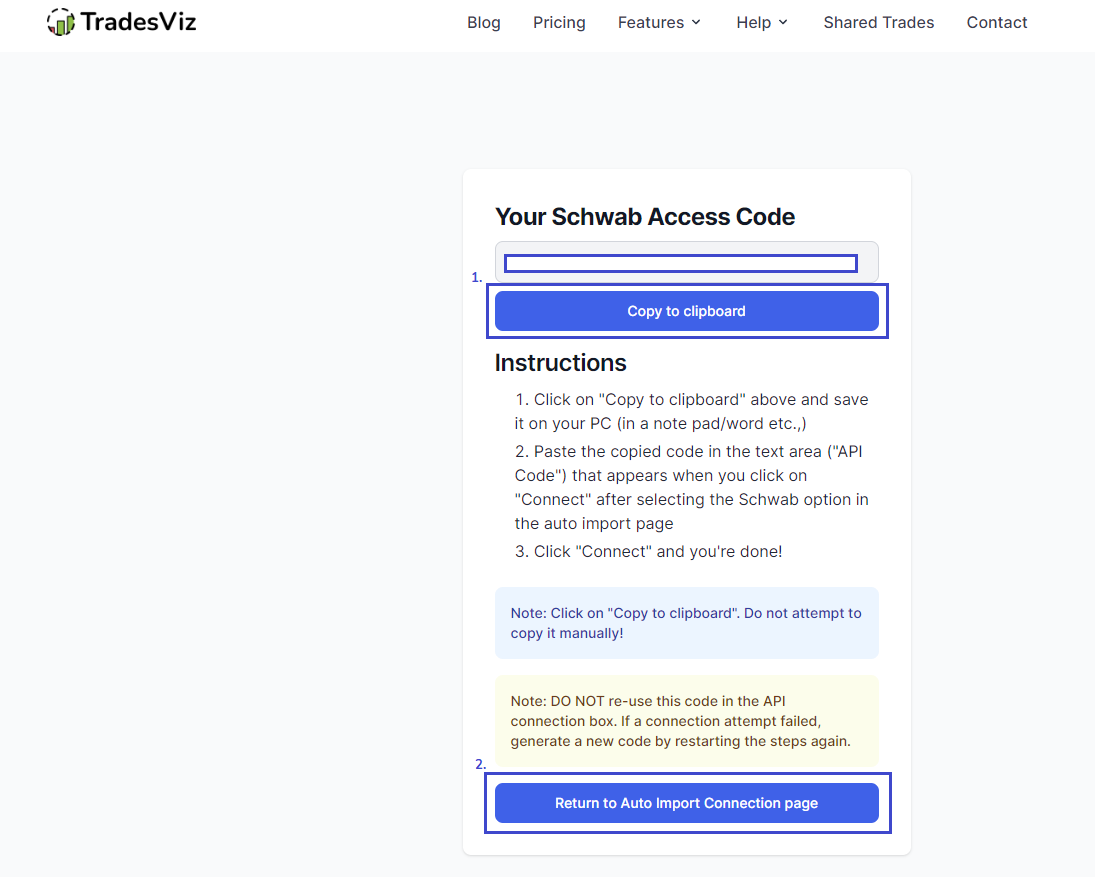
That's it! You can now sync your connection.
If you want to add more connections, follow these steps:
- Visit the TradesViz import page (tradesviz.com/import) and click on "Add Auto-sync connection" tab
- Choose your trading account, choose Schwab in the platform list, and click Connect.
- You will be presented with a slightly different connection box than what we saw before.
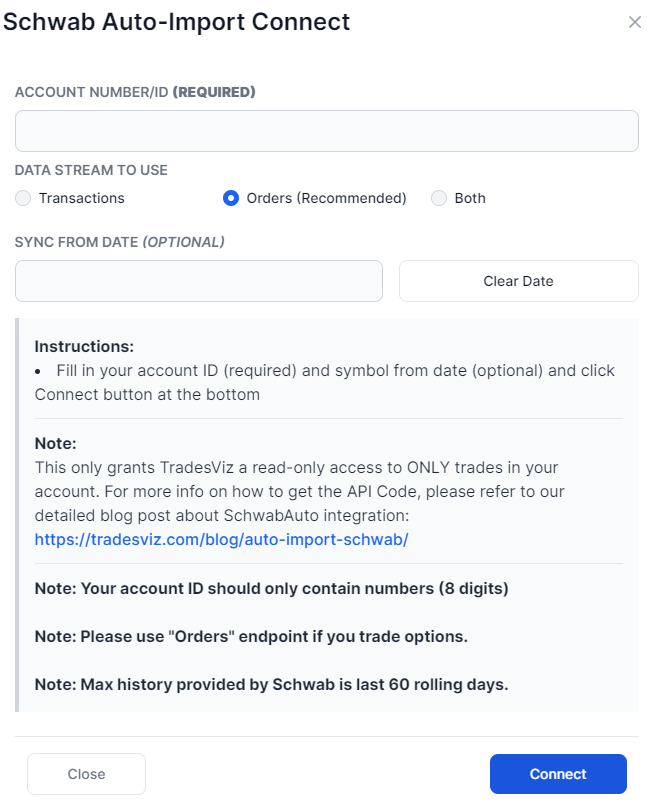
- Now just enter your account ID (8 digits) and optionally the sync from date and click connect - no need to go through the Schwab authentication process.
For all your subsequent connections please follow the same steps as above.
Things to remember/consider
The connection only lasts 7 days
We have no control over this and this is a limit set by Schwab. This means the read-only access code we get expires in 7 days and cannot be used beyond that. In order to prevent additional work for the users, we've simplified this process as much as we can. Once the 7 days pass, your syncs will automatically start to fail. When that happens, you will see the following:
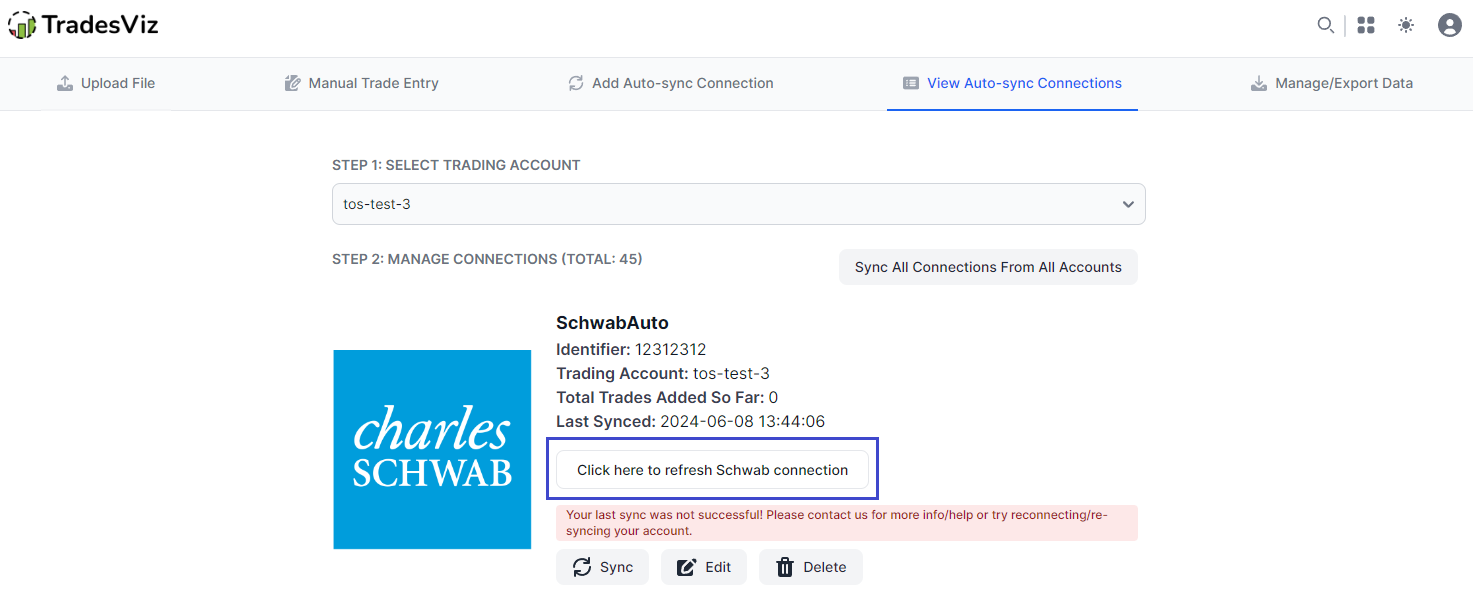
Simply click on the button that says "click here to refresh Schwab connection" and complete the Schwab authentication process. That's it! Even if you have multiple connections, doing this for any ONE connection will automatically refresh ALL your other connections. There's no need to re-establish the connection or delete all your connections.
The sync limit is 30 days
This means, only the executions made in the last 30 days are imported. In case you have more history or if you are a swing trader, this may cause incomplete positions to be imported. For example, if the last 60 days start from 2024-03-15 and you made a trade on 2024-03-10 and closed it on 2023-03-20, in this case, only the closing positions are imported because the open positions fall beyond the 30-day limit. To avoid this, we suggest manually importing your entire history via CSV (tradesviz.com/import > choose Schwab and follow instructions) and then edit your connection to have "sync from date" after the last execution's date in the account. This will ensure that you have ALL data + your sync transition is smooth (no duplication).
2026 Update: We have added a new extended history mode that can get max available history via the API. You can check that as an additional option when setting up your connection.
Please note: If you have an existing TDA connection, you will need to delete it (after it stops working) and make sure your Schwab connection's "sync from the date" (view connections list > edit connection) starts AFTER the last execution's date in your TDA account. This is to make sure there is no overlap between your TDA and Schwab data.
Important Notes About Auto-Sync
- Auto-sync only brings in recent / new trades going forward. For older history, first do a one-time
manual file import from the Upload File tab, then enable auto-sync.
- TradesViz uses read-only access wherever the broker supports it. We never request trading,
transfer, or withdrawal permissions.
- Some brokers (OAuth-based) expire connections periodically and require you to reconnect.
Troubleshooting
- If the connection fails, double-check API keys / OAuth login and that required permissions are granted.
- Make sure the trading account in TradesViz matches the asset class (stocks vs. futures vs. crypto).
- If sync stops bringing in new trades, reconnect the broker from the Auto-Sync connections page.
Need Help?
Email support@tradesviz.com with your broker, the trading account name in
TradesViz, and a screenshot of the error.
If your broker is not yet supported for auto-sync, see our
supported brokers list or contact support to request it.
FAQ
Why are old trades missing after I connected auto-sync?
Auto-sync only fetches recent history. Import a historical CSV/Excel file first from the Upload File
tab, then enable auto-sync for new trades going forward.
How often does auto-sync run?
Connections are synced automatically on a recurring schedule (typically daily). You can also trigger a
manual sync from the Auto-Sync connections page.
Is auto-sync safe? Can TradesViz trade on my account?
No. TradesViz requests read-only access whenever the broker supports it. We do not place trades or move
funds. For OAuth-based brokers, the consent screen will show exactly which scopes are granted.
Full blog post
You can also read the original walkthrough on our blog: Charles Schwab auto-sync guide.
Updated on: 17/07/2026
Thank you!