
How to auto-sync trades from Robinhood to TradesViz trading journal?
Quick Start
To auto-sync your Robinhood account, visit https://tradesviz.com/import/.
Use the first dropdown to choose your trading account, the second dropdown to choose Robinhood,
then switch to the Auto-Sync tab and follow the steps below.
You can also open Import/Export from your profile menu in the top-right corner.
Auto-Sync Setup Instructions
A long-requested feature from many traders who are using Robinhood.
This time, the sync is a little different from all the other sync methods we have shown so far.
To sum up, here are the changes:
- You have to enter your username and password (and optionally your 2FA code) on the import page for this sync to work
- This sync can only be triggered manually from your side because we NEVER store your username or password so there is no 100% auto-sync for Robinhood.
- If you are not interested in inputting your Robinhood username/password, this solution is not for you.
Disclaimer (READ):
Due to many changes made by Robinhood since Jan 2025, we are putting up this disclaimer for users who are solely looking for the Robinhood API sync:
- Please note that TradesViz does not take any responsibility for missing trades resulting from network issues or Robinhood changing its API /authentication system, causing the sync to stop working or not bring in new data.
- All Robinhood API are undocumented and therefore are not guaranteed to have API working at all times.
- Proceed to use Robinhood API sync ONLY IF YOU AGREE TO THE ABOVE TERMS.
23rd July 2023
Update: Robinhood sync is only available as a sync once method where you have to enter your credentials every time. Robinhood no longer supports longer access token storage times so 100% auto-sync is not possible now.
12th July 2022
Update: 100% Auto Robinhood sync is now possible on TradesViz! The steps mentioned in this guide apply to the 100% auto-sync connection also. The only difference is that you establish a connection by going to tradesviz.com/import > auto-import and then choosing "Robinhood" in the platforms list.
Now, if you are ok with the above and want to sync your trades, read on.
Robinhood does not have a public API. This means there is no way for us - a 3rd party to safely access your account details (trades) in a read-only manner which is how ALL the other auto-sync procedures work on TradesViz.
The only way to Robinhood's API is by using your account's username, password, and the 2FA token if you have enabled 2FA on your account.
Here is how you can sync your Robinhood trades:
- Head over to tradesviz.com/import
- Select **Robinhood API (Auto-Sync)**in the platforms list
- Scroll to the bottom, you will see a button "Login & Sync Robinhood Data" - Click the button
- Make sure you carefully read all the notices and disclaimers.
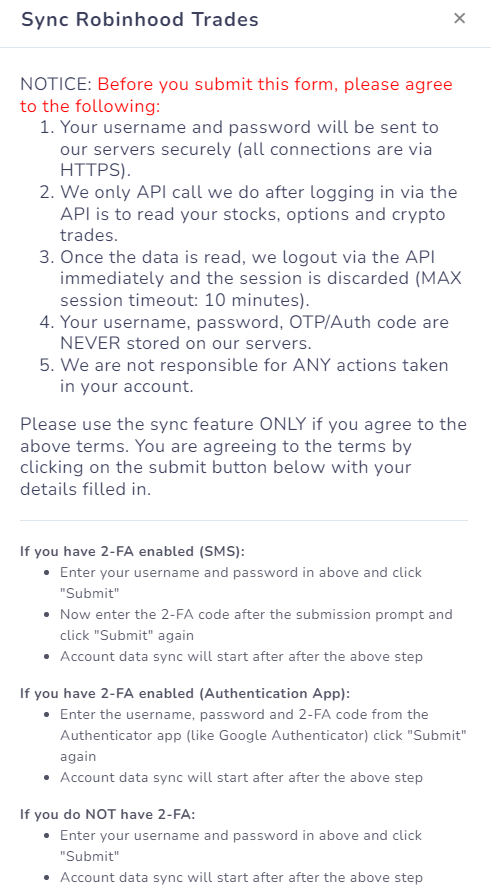
- Now, enter your login details and follow the instructions depending on your 2-FA scenario. We HIGHLY recommend using 2FA on your account at all times! This sync has been tested to work well with 2FA apps as well as SMS-based authentication. PLEASE MAKE SURE YOU READ THE DISCLAIMER! WE ARE NOT RESPONSIBLE FOR ANY UNAUTHORIZED ACTIONS THAT HAPPEN IN YOUR ACCOUNT!
After you click submit, your trades (options, stocks, and crypto) will start syncing to your account. This will take a few minutes as each sync pulls the entire trade history from your account.
That's it! This is the easiest way to sync with Robinhood accurately until Robinhood decides to release a public API. Please let us know if you have any questions or concerns by emailing us at support@tradesviz.com
Important Notes About Auto-Sync
- Auto-sync only brings in recent / new trades going forward. For older history, first do a one-time
manual file import from the Upload File tab, then enable auto-sync.
- TradesViz uses read-only access wherever the broker supports it. We never request trading,
transfer, or withdrawal permissions.
- Some brokers (OAuth-based) expire connections periodically and require you to reconnect.
Troubleshooting
- If the connection fails, double-check API keys / OAuth login and that required permissions are granted.
- Make sure the trading account in TradesViz matches the asset class (stocks vs. futures vs. crypto).
- If sync stops bringing in new trades, reconnect the broker from the Auto-Sync connections page.
Need Help?
Email support@tradesviz.com with your broker, the trading account name in
TradesViz, and a screenshot of the error.
If your broker is not yet supported for auto-sync, see our
supported brokers list or contact support to request it.
FAQ
Why are old trades missing after I connected auto-sync?
Auto-sync only fetches recent history. Import a historical CSV/Excel file first from the Upload File
tab, then enable auto-sync for new trades going forward.
How often does auto-sync run?
Connections are synced automatically on a recurring schedule (typically daily). You can also trigger a
manual sync from the Auto-Sync connections page.
Is auto-sync safe? Can TradesViz trade on my account?
No. TradesViz requests read-only access whenever the broker supports it. We do not place trades or move
funds. For OAuth-based brokers, the consent screen will show exactly which scopes are granted.
Full blog post
You can also read the original walkthrough on our blog: Robinhood auto-sync guide.
Updated on: 17/07/2026
Thank you!