
How to Auto-Sync Upbit with TradesViz Step-by-Step Guide
Quick Start
To auto-sync your Upbit account, visit https://tradesviz.com/import/.
Use the first dropdown to choose your trading account, the second dropdown to choose Upbit,
then switch to the Auto-Sync tab and follow the steps below.
You can also open Import/Export from your profile menu in the top-right corner.
Auto-Sync Setup Instructions
In this post, we will explore how to pair your TradesViz account with Upbit.
This post assumes that you have read the basics about auto importing in TradesViz.
Upbit is available in multiple regions - Singapore, Indonesia, and Thailand. TradesViz supports all three regional API endpoints. Once you select your trading account and broker as "Upbit" in the trade auto-import page, a popup box will appear when you click on the "Connect account" button.
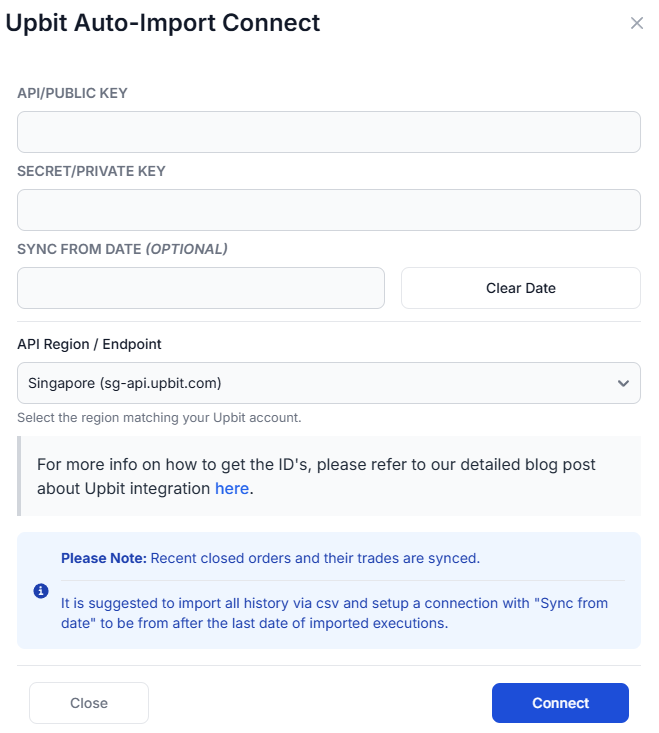
You will need to select the API region that matches your Upbit account:
- Singapore (sg-api.upbit.com)
- Indonesia (id-api.upbit.com)
- Thailand (th-api.upbit.com)
The purpose of this blog post is to guide you to get the API keys from the Upbit website. Here are the steps you need to follow:
- Log into your Upbit account (for your respective region: sg.upbit.com, id.upbit.com, or th.upbit.com)
- Navigate to the "Open API Management" page from your account settings or profile menu.
- Click on "Create API Key" (or "Issue Open API Key")
- When setting permissions, make sure to enable the following:
- View assets – to read your account balances
- View orders – to read your order history
- Do NOT enable trade or withdrawal permissions - TradesViz only needs read access.
- Do NOT enter any IP restrictions
- After generating the API key, you will see your Access Key and Secret Key. Copy both immediately as the secret key may not be shown again.
- Enter the Access Key in the "API Key" field, and the Secret Key in the "API Secret" field in the TradesViz connection popup, select the correct region, and click "Connect".
Note: This connection only gives us READ-ONLY permission to your account to access your orders/trades. We do not have any other permissions. We do NOT have any trading/transfer of coins/assets permissions.
That's it! Upbit is a spot-only exchange, so all your completed spot orders will be synced automatically. Trades are imported with their full details including market pair, price, volume, and fees.
You will now be able to see trades like BTC/KRW, ETH/USDT, XRP/BTC, etc., in your TradesViz.com account. They will be tagged as Cryptocurrency and you will also be able to see charts for them.
Please let us know if you have any questions or concerns about the Upbit auto-sync integration and also about our general Crypto asset type addition to TradesViz!
Important Notes About Auto-Sync
- Auto-sync only brings in recent / new trades going forward. For older history, first do a one-time
manual file import from the Upload File tab, then enable auto-sync.
- TradesViz uses read-only access wherever the broker supports it. We never request trading,
transfer, or withdrawal permissions.
- Some brokers (OAuth-based) expire connections periodically and require you to reconnect.
Troubleshooting
- If the connection fails, double-check API keys / OAuth login and that required permissions are granted.
- Make sure the trading account in TradesViz matches the asset class (stocks vs. futures vs. crypto).
- If sync stops bringing in new trades, reconnect the broker from the Auto-Sync connections page.
Need Help?
Email support@tradesviz.com with your broker, the trading account name in
TradesViz, and a screenshot of the error.
If your broker is not yet supported for auto-sync, see our
supported brokers list or contact support to request it.
FAQ
Why are old trades missing after I connected auto-sync?
Auto-sync only fetches recent history. Import a historical CSV/Excel file first from the Upload File
tab, then enable auto-sync for new trades going forward.
How often does auto-sync run?
Connections are synced automatically on a recurring schedule (typically daily). You can also trigger a
manual sync from the Auto-Sync connections page.
Is auto-sync safe? Can TradesViz trade on my account?
No. TradesViz requests read-only access whenever the broker supports it. We do not place trades or move
funds. For OAuth-based brokers, the consent screen will show exactly which scopes are granted.
Full blog post
You can also read the original walkthrough on our blog: Upbit auto-sync guide.
Updated on: 17/07/2026
Thank you!