
How to Auto-Sync tastytrade (tastyworks) with TradesViz Step-by-Step Guide
Quick Start
To auto-sync your tastytrade (tastyworks) account, visit https://tradesviz.com/import/.
Use the first dropdown to choose your trading account, the second dropdown to choose tastytrade (tastyworks),
then switch to the Auto-Sync tab and follow the steps below.
You can also open Import/Export from your profile menu in the top-right corner.
Auto-Sync Setup Instructions
This guide shows the current (new) way to connect Tastytrade (TastyWorks) to TradesViz.
Before continuing, please read the auto-import basics.
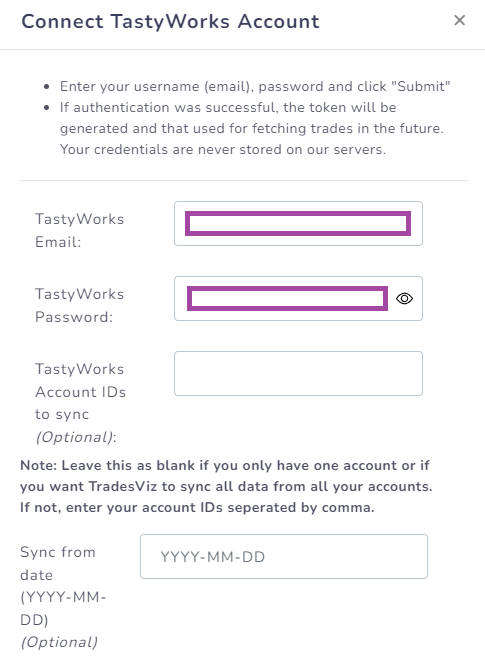
Quick setup (OAuth + account picker)
- In TradesViz, open Import/Export and choose your target trading account in Step 1.
- Select TastyWorks/TastyTrade and click Continue to Tastytrade.
- Log in on Tastytrade and approve read-only access.
- If your Tastytrade login has multiple accounts, pick one in the TradesViz account picker (last step).
- Click Connect Account, then click Sync.
Important: You no longer need to manually copy/paste API codes in this flow.
TradesViz only requests read-only permissions. We cannot place orders or move funds.
If you need help, contact support@tradesviz.com.
Important Notes About Auto-Sync
- Auto-sync only brings in recent / new trades going forward. For older history, first do a one-time
manual file import from the Upload File tab, then enable auto-sync.
- TradesViz uses read-only access wherever the broker supports it. We never request trading,
transfer, or withdrawal permissions.
- Some brokers (OAuth-based) expire connections periodically and require you to reconnect.
Troubleshooting
- If the connection fails, double-check API keys / OAuth login and that required permissions are granted.
- Make sure the trading account in TradesViz matches the asset class (stocks vs. futures vs. crypto).
- If sync stops bringing in new trades, reconnect the broker from the Auto-Sync connections page.
Need Help?
Email support@tradesviz.com with your broker, the trading account name in
TradesViz, and a screenshot of the error.
If your broker is not yet supported for auto-sync, see our
supported brokers list or contact support to request it.
FAQ
Why are old trades missing after I connected auto-sync?
Auto-sync only fetches recent history. Import a historical CSV/Excel file first from the Upload File
tab, then enable auto-sync for new trades going forward.
How often does auto-sync run?
Connections are synced automatically on a recurring schedule (typically daily). You can also trigger a
manual sync from the Auto-Sync connections page.
Is auto-sync safe? Can TradesViz trade on my account?
No. TradesViz requests read-only access whenever the broker supports it. We do not place trades or move
funds. For OAuth-based brokers, the consent screen will show exactly which scopes are granted.
Full blog post
You can also read the original walkthrough on our blog: tastytrade (tastyworks) auto-sync guide.
Updated on: 17/07/2026
Thank you!