
How to Auto-Sync PropReports with TradesViz Step-by-Step Guide
Quick Start
To auto-sync your PropReports account, visit https://tradesviz.com/import/.
Use the first dropdown to choose your trading account, the second dropdown to choose PropReports,
then switch to the Auto-Sync tab and follow the steps below.
You can also open Import/Export from your profile menu in the top-right corner.
Auto-Sync Setup Instructions
A long-requested feature from many traders who are using PropReports.
This time, the sync is a little different from all the other sync methods we have shown so far.
To sum up, here are the changes:
- You have to enter your username and password and the host URL on the import page for this sync to work
- This sync can only be triggered manually from your side because we NEVER store your username or password so there is no 100% auto-sync for PropReports.
- If you are not interested in inputting your PropReports username/password, this solution is not for you.
Now, if you are ok with the above and want to sync your trades, read on.
PropReports does a public API and this API requires the use of a username and password to get the access token which is then used to fetch the trades data.
Here is how you can sync your PropReports trades:
- Head over to tradesviz.com/import
- Select PropReports API (Auto-Sync) in the platforms list
- Scroll to the bottom, you will see a button "Login & Sync PropReports Data" - Click the button
- Make sure you carefully read all the notices and disclaimers.
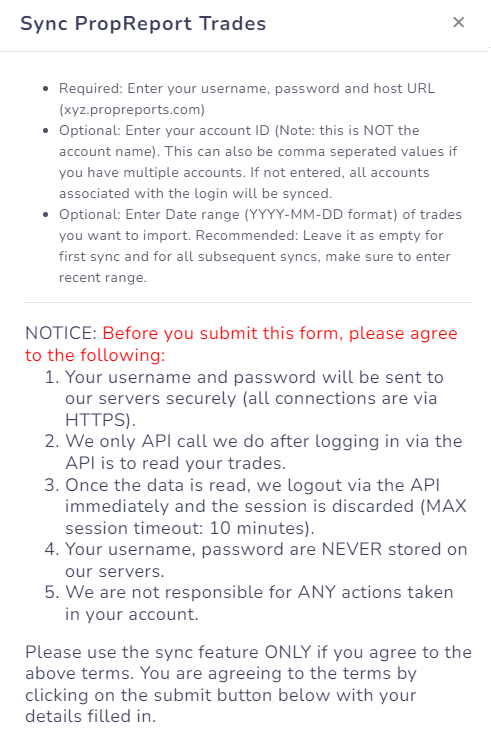
- Now, enter your login details and host URL which are the minimum required information. PLEASE MAKE SURE YOU READ THE DISCLAIMER! WE ARE NOT RESPONSIBLE FOR ANY UNAUTHORIZED ACTIONS THAT HAPPEN IN YOUR ACCOUNT!
Note: If you have a large number of trades in your account, please make sure to enter the date range after the first sync! Otherwise, the sync will take very long!
After you click submit, your trades will start syncing to your account. This will take a few seconds to minutes or more depending on the no. of orders in your account.
That's it! This is the easiest way to sync your trades from PropReports to TradesViz!
Please let us know if you have any questions or concerns by emailing us at support@tradesviz.com
Important Notes About Auto-Sync
- Auto-sync only brings in recent / new trades going forward. For older history, first do a one-time
manual file import from the Upload File tab, then enable auto-sync.
- TradesViz uses read-only access wherever the broker supports it. We never request trading,
transfer, or withdrawal permissions.
- Some brokers (OAuth-based) expire connections periodically and require you to reconnect.
Troubleshooting
- If the connection fails, double-check API keys / OAuth login and that required permissions are granted.
- Make sure the trading account in TradesViz matches the asset class (stocks vs. futures vs. crypto).
- If sync stops bringing in new trades, reconnect the broker from the Auto-Sync connections page.
Need Help?
Email support@tradesviz.com with your broker, the trading account name in
TradesViz, and a screenshot of the error.
If your broker is not yet supported for auto-sync, see our
supported brokers list or contact support to request it.
FAQ
Why are old trades missing after I connected auto-sync?
Auto-sync only fetches recent history. Import a historical CSV/Excel file first from the Upload File
tab, then enable auto-sync for new trades going forward.
How often does auto-sync run?
Connections are synced automatically on a recurring schedule (typically daily). You can also trigger a
manual sync from the Auto-Sync connections page.
Is auto-sync safe? Can TradesViz trade on my account?
No. TradesViz requests read-only access whenever the broker supports it. We do not place trades or move
funds. For OAuth-based brokers, the consent screen will show exactly which scopes are granted.
Full blog post
You can also read the original walkthrough on our blog: PropReports auto-sync guide.
Updated on: 17/07/2026
Thank you!