
How to Auto-Sync Plaid (Bank Sync) with TradesViz Step-by-Step Guide
Quick Start
To auto-sync your Plaid (Bank Sync) account, visit https://tradesviz.com/import/.
Use the first dropdown to choose your trading account, the second dropdown to choose Plaid (Bank Sync),
then switch to the Auto-Sync tab and follow the steps below.
You can also open Import/Export from your profile menu in the top-right corner.
Auto-Sync Setup Instructions
If you are looking for a complete guide to Plaid syncing and Plaid account linking in TradesViz, this is it. This post walks through setup, first sync, ongoing sync behavior, edit/disconnect actions, and real-world limitations so you can avoid import surprises.
This post assumes that you have read the basics about auto importing in TradesViz.
Many traders ask whether Plaid works with institutions they already know: Charles Schwab, E*TRADE, Vanguard, Robinhood, Merrill, SoFi, Interactive Brokers, M1 Finance, Chase (J.P. Morgan), Wells Fargo, and more. The short answer is: institution availability depends on Plaid and on what each institution exposes for investments data.
Not sure if your broker is supported? We publish the complete, regularly refreshed list of every US broker and bank you can auto-sync via Plaid, over 3,000 institutions, on the Plaid Supported Brokers page. It has a search box so you can check your institution in seconds.
This guide is intentionally detailed and SEO-friendly so you can use it as a complete reference whenever you need to connect, sync, troubleshoot, or re-link your Plaid connection.

What Plaid Sync Imports (and What It Does Not)
Plaid sync can import:
- Investment buy/sell transactions that the institution shares through Plaid
- Optional money transfer transactions (deposits/withdrawals) when available and recognizable
Plaid sync does not import every possible financial event. For example, unsupported instrument categories or non-buy/sell events may be skipped depending on institution payload quality.
Quick Overview: What You Need to Know Before Connecting
Before you start, here are the key things to keep in mind:
- Read-only by design: Plaid integration only reads your account data. It cannot place trades, move money, or change anything at your institution.
- One connection per trading account: Pick the correct TradesViz trading account before linking. You can give each connection a clear name (for example: "Fidelity IRA" or "E*TRADE Margin").
- You control the history window: An optional Import From Date lets you avoid overlapping with trades you already imported manually (Fidelity CSV, Schwab export, E*TRADE statements, Robinhood/Webull exports, etc.).
- Money transfers are optional: You can choose whether to also import deposits and withdrawals during the same sync.
- Institution coverage varies: Whether your bank/broker (Fidelity, Charles Schwab, E*TRADE, Vanguard, Robinhood, Webull, Interactive Brokers, Chase, Bank of America, Wells Fargo, Citi, Capital One, etc.) is supported and how much data is available depends on what Plaid and that institution expose.
- Duplicates are prevented automatically: Re-running sync is safe; matching transaction IDs are skipped.
Step-by-Step Setup
1) Open Plaid connect flow
- Go to tradesviz.com/import.
- Open Add Auto-sync Connection.
- Select the Plaid mode panel.
- Select your target trading account.
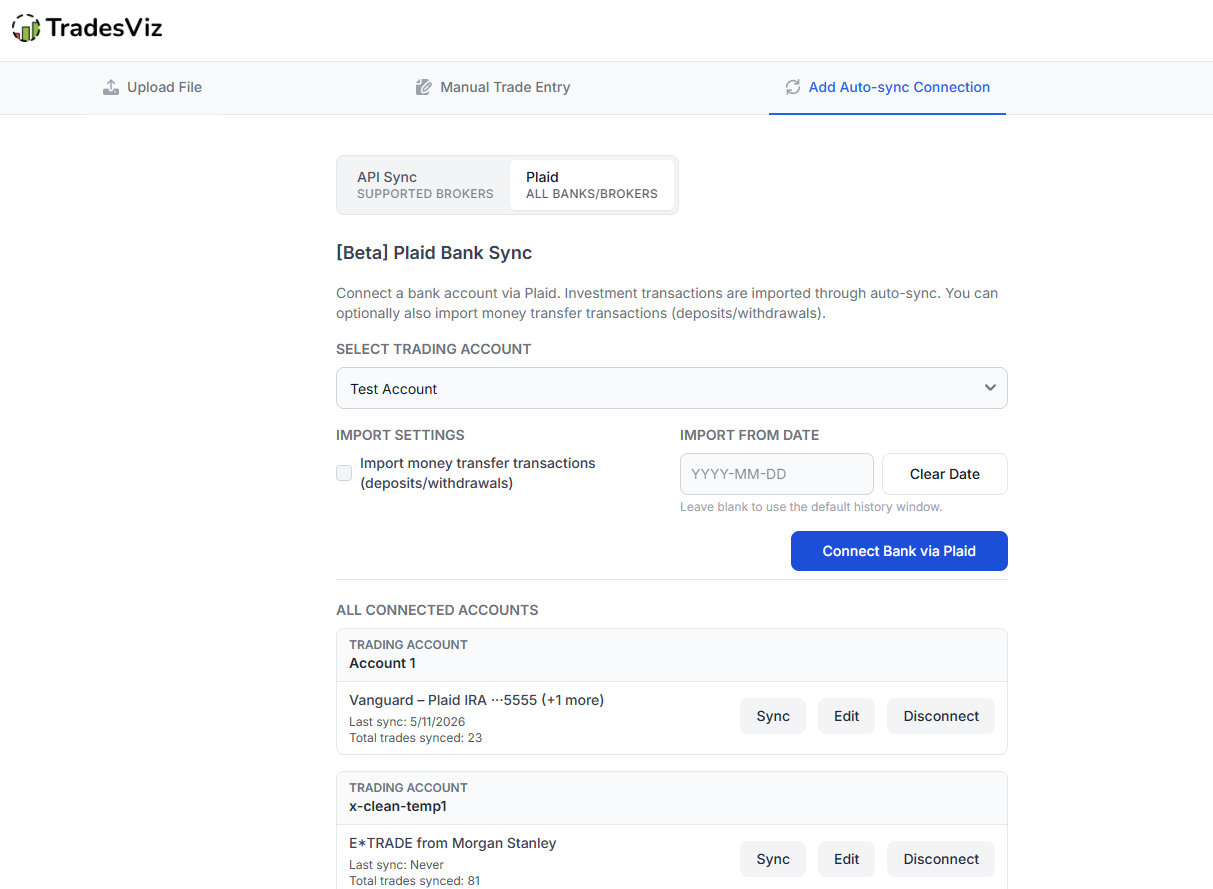
2) Configure optional import options before linking
- Import money transfer transactions (deposits/withdrawals): optional checkbox
- Import From Date: optional YYYY-MM-DD date to limit historical backfill window
If you previously imported data manually (for example from Fidelity CSV, Charles Schwab export, E*TRADE statements, Robinhood CSV tools, or Webull exports), setting Import From Date helps reduce overlap in first sync.
3) Accept disclaimer and start Plaid Link
Click Connect Bank via Plaid, then acknowledge the disclaimer. The disclaimer confirms read-only behavior and data dependency on Plaid/institution output.
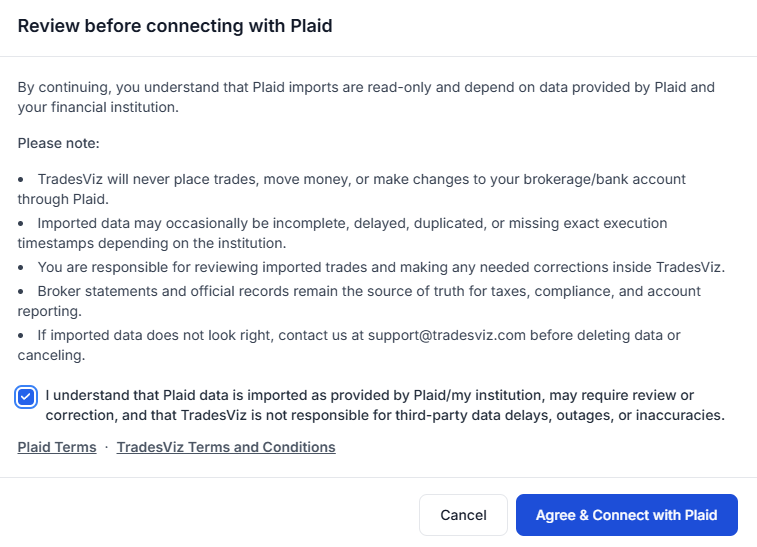
4) Complete institution authentication in Plaid Link
Inside Plaid Link:
- Search institution
- Authenticate with credentials/MFA
- Select eligible investment account(s)
- Finish Link flow and return to TradesViz
For OAuth-based institutions (for example Chase, Bank of America, Wells Fargo), you may be redirected and returned before the link is completed.
TradesViz Plaid Sync - Connection Setup - 1 | TradesViz Plaid Sync - Connection Setup - 2 |
|---|
5) Confirm connection and run first sync
After successful linking:
- The new connection appears under your Plaid connection list
- You can click Sync for immediate import
- You can click Edit to change connection name and options
- You can click Disconnect to remove the connection
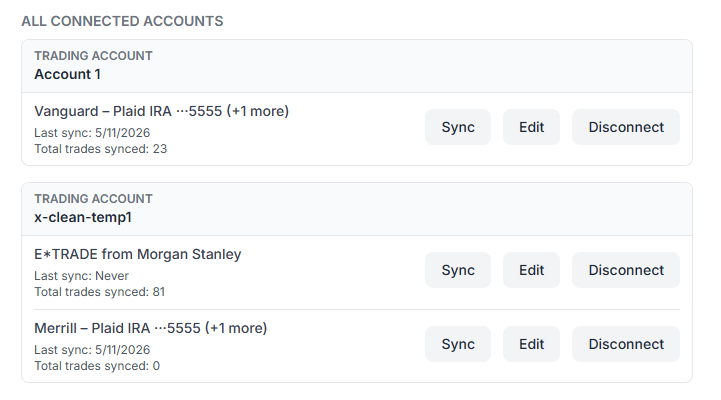
How Sync Works in Plain English
- First sync pulls a historical window (depending on institution and your chosen import date).
- Next syncs use an incremental date window from the last successful sync start date.
- Duplicate safety uses stable transaction identifiers.
- Supported investment transactions are converted to standard TradesViz execution rows for import.
Functional Limitations You Should Know (Important)
1) Institution coverage is not equal
Even if an institution appears in Plaid Link, investments data depth can vary by institution, account type, and region. Example institutions people commonly test include Fidelity, Charles Schwab, E*TRADE, Robinhood, Webull, Vanguard, Chase, and Wells Fargo.
2) Historical depth is limited by provider data
Initial sync is typically limited to the history made available by Plaid/institution (often around 24 months, but not guaranteed).
3) Data is not guaranteed real-time
Sync freshness depends on institution posting delays and Plaid data refresh windows. Plaid sync is best treated as periodic account journaling sync, not tick-level execution streaming.
4) Execution transaction scope is selective
Execution import primarily focuses on buy/sell investment transactions. Non-buy/sell investment events may not be imported as executions.
5) Unsupported/filtered instrument classes
Certain classes such as fixed income, bond-like instruments, and mutual funds can be filtered out depending on payload classification.
6) Option and derivative mapping depends on symbol quality
Option contract parsing depends on available contract metadata or recognizable symbol formats. Some exotic naming formats may require manual review.
7) Timestamp precision can be date-based
Some institution payloads provide date-only values instead of precise execution time. When only date is available, imported time precision will be limited.
Money transfer import is heuristic
Deposit/withdraw classification is inferred from transaction type/subtype patterns. Some cash events may be omitted or require manual correction based on institution wording.
9) Corrections to previously imported rows may not auto-overwrite
If an institution later changes details for a previously imported transaction, the update may not always overwrite existing imported execution rows automatically.
10) Re-auth may be required after credential/MFA changes
If institution credentials or security settings change, sync can fail until you re-authenticate the connection.
11) OAuth redirect configuration matters
OAuth institutions require a valid redirect completion flow. If redirect flow is interrupted, connection setup may not finalize.
12) Connection quantity and naming safeguards exist
Connection-level safeguards include per-user connection count limits and duplicate connection-name checks per trading account.
13) Disconnect removes future sync, not your existing imported history
Disconnecting a Plaid connection stops future syncs for that connection. Existing imported data in your account remains unless you manually remove it.
Common Troubleshooting (Plaid Sync + Plaid Link)
Q: I connected successfully but no new trades were imported.
- Check Import From Date (it may be too recent).
- Confirm the selected institution account actually has investment activity.
- Try manual sync again after institution posting delay.
Q: Why are my deposits/withdrawals missing?
- Ensure the money transfer option is enabled in the connection settings.
- Some transfer events may not be categorized in a way that can be confidently classified as deposit/withdraw.
Q: Why does symbol mapping look different from my broker statement?
- Plaid instrument metadata can differ from direct broker export formats.
- Review options/futures/forex mapping and correct manually where needed.
Q: Why do I see login-required sync errors?
- Institution credential or MFA changes typically require a re-auth flow.
- Re-open connect/re-link flow and complete institution authentication again.
Best Practices for Clean Plaid Imports
- Use a dedicated trading account for each major institution source when possible.
- Set Import From Date before first sync if you already imported old history manually.
- Keep connection names clear (for example: "Fidelity IRA", "E*TRADE Margin", "Schwab Options").
- Run one manual sync after market close to verify mapped symbols and totals.
- Review deposits/withdrawals separately from executions if cash tracking is important to your workflow.
- Re-check connection health after password, MFA, or institution security changes.
SEO FAQ: Popular Institution Searches
Does Plaid sync work for Fidelity, Schwab, and E*TRADE?
It can, if those institutions and account types expose compatible investments data through Plaid in your region.
Can I link bank names like Chase, Bank of America, Wells Fargo, Citi, or Capital One?
Connection availability can exist, but investments data completeness and behavior vary by institution and account type.
Is Plaid sync better than CSV import?
Plaid sync reduces manual effort for ongoing imports. CSV/manual import can still be useful for backfills and precise one-off corrections.
Final Notes
Plaid account linking and Plaid syncing can significantly simplify ongoing journal imports for many traders. The best results come from understanding up front that data quality and depth are institution-dependent. If you are testing with institutions like Fidelity, E*TRADE, Schwab, Robinhood, Webull, Vanguard, Chase, or Wells Fargo, always run a small validation pass after first sync.
If you need help with setup, troubleshooting, or migration from manual imports, contact support@tradesviz.com with your institution name and a brief description of your sync behavior.
Important Notes About Auto-Sync
- Auto-sync only brings in recent / new trades going forward. For older history, first do a one-time
manual file import from the Upload File tab, then enable auto-sync.
- TradesViz uses read-only access wherever the broker supports it. We never request trading,
transfer, or withdrawal permissions.
- Some brokers (OAuth-based) expire connections periodically and require you to reconnect.
Troubleshooting
- If the connection fails, double-check API keys / OAuth login and that required permissions are granted.
- Make sure the trading account in TradesViz matches the asset class (stocks vs. futures vs. crypto).
- If sync stops bringing in new trades, reconnect the broker from the Auto-Sync connections page.
Need Help?
Email support@tradesviz.com with your broker, the trading account name in
TradesViz, and a screenshot of the error.
If your broker is not yet supported for auto-sync, see our
supported brokers list or contact support to request it.
FAQ
Why are old trades missing after I connected auto-sync?
Auto-sync only fetches recent history. Import a historical CSV/Excel file first from the Upload File
tab, then enable auto-sync for new trades going forward.
How often does auto-sync run?
Connections are synced automatically on a recurring schedule (typically daily). You can also trigger a
manual sync from the Auto-Sync connections page.
Is auto-sync safe? Can TradesViz trade on my account?
No. TradesViz requests read-only access whenever the broker supports it. We do not place trades or move
funds. For OAuth-based brokers, the consent screen will show exactly which scopes are granted.
Full blog post
You can also read the original walkthrough on our blog: Plaid (Bank Sync) auto-sync guide.
Updated on: 17/07/2026
Thank you!