
How to Auto-Sync MetaTrader (FTP) with TradesViz Step-by-Step Guide
Quick Start
To auto-sync your MetaTrader account, visit https://tradesviz.com/import/.
Use the first dropdown to choose your trading account, the second dropdown to choose MetaTrader,
then switch to the Auto-Sync tab and follow the steps below.
You can also open Import/Export from your profile menu in the top-right corner.
Auto-Sync Setup Instructions
So far we have added real-time auto-sync indicators for NinjaTrader and SierraChart - the 2 most popular platforms for futures foremost and then stocks.
Now, we are adding an auto-sync indicator for MetaTrader 5 which is one of the most used forex trading and backtesting platform in the world.
We have had this request from MetaTrader users for a long time and we just got around to testing and implementing it. Let's dive in and see how you can make use of this indicator to automatically sync your trades with your TradesViz account.
Disclaimer (READ):
- Please note that TradesViz does not take any responsibility for missing trades resulting from network issues or wrong setups.
- Setting up real-time sync is an involved process and should be thoroughly tested with 1 demo account before moving on to a live account.
- ALL instructions on this page MUST be read carefully in order to setup the indicator correctly.
- We do not guarantee performance for more than 2-3 accounts at the same time due to technical limitations.
- If you trade with platforms like Tradovate or Rithmic, it's suggested to sync from such platforms at the end of day rather than real-time syncing as it's easier for new traders.
- The indicator should NOT be used with any type of automated trading systems/bots.
- The indicator provided by TradesViz is as-is without any guarantees.
- Proceed to download and use the indicator ONLY IF YOU AGREE TO THE ABOVE TERMS.
Download and install the auto-sync Expert Advisor from this link (free) (Note: Only tested for MetaTrader 5)
To install the Expert Advisor**:**
- Open MetaTrader 5. Click on File > Open data folder
- Open the MQL5 folder > Experts > Advisors> Paste the .ex5 file in this folder
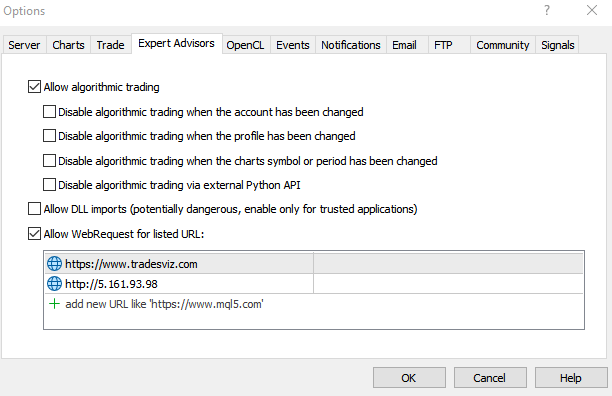
- Open MetaTrader 5. Click on Tools > Options > open Expert Advisors tab > add "https://www.tradesviz.com" and "http://5.161.93.98" to the list of allowed URLs
To load the Expert Advisor**:**
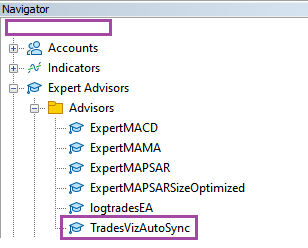
- Go back into MetaTrader, on the left side in the navigator, click on Export Advisors > Advisors, and then double-click on "TradesVizAutoSync".
- Make sure to fill in your tradesviz trading account name, account secret and your TradesViz registered email address. You can find the account secret on your global account settings page. Please make sure your trading account name is correct because the field is case-sensitive. Note: This is your TRADING ACCOUNT NAME - not your user id or username. If incorrect account name is filled in, all your trades will be added to the first trading account in alphabetical order in your account.
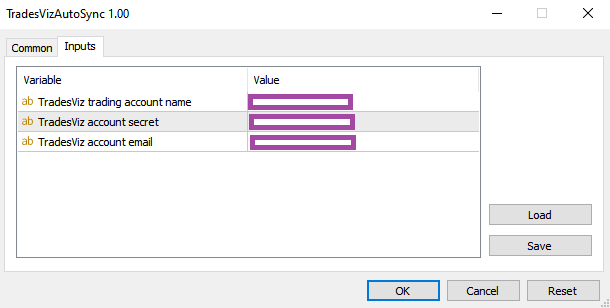
- Once you have filled in this info, click Ok and you are ready to trade!
We suggest trying this on a demo/paper account so that you get used to the workings of the auto-sync indicator. To understand what it happening under the hood, click on the "Experts" tab at the bottom of the MetaTrader client. Every execution you make is logged here.

This is also the best way to debug if you have any issues.
Finally, you can now visit your TradesViz journal > navigate to the trades table, and refresh the table by clicking on any column. Note that if you are just starting trading for the day, you may have to click on "Full range range" in the calendar widget at the top right corner to make sure the journal is also including today's trades.
That's it! You can set up multiple export advisors for different charts, and customize where you want the trades to be directed with this MetaTrader Expert Advisor. Typically, adding one instance of this Expert advisor to any chart in your current dashboard should be sufficient to record all the trades into a single TradesViz trading account. Always be sure to check the Exports logs for more details.
Other info:
- You can add this EA to ANY chart linked to your account and it will pick up the trades made in all other charts that are also linked to the same account
- If you trade on only 1 chart and already have an EA on chart, create another chart linked to the same account and add the EA to that chart
- This Export advisor ONLY reads the executed transactions. No other operations are performed.
- MetaTrader 4 port is NOT planned.
- Make sure to add "https://www.tradesviz.com" to the Exert advisor-allowed domains
Historical data is NOT imported! This is ONLY for real time trade sync.
If you already have a chart with EA, create another chart linked to the same account and add TradesViz EA to it - sync will work.
Always check logs if you have any issues.
With this feature, we hope to give all Forex and CFD traders using MetaTrader to have solid trading journaling with the best features available at the moment compared to any other competitors!
If you have any feedback for us or would like us to add any features, please let us know by emailing us at support@tradesviz.com
Notice: Usage of the TradesViz indicator to sync trades made by bots/automated systems is NOT allowed. This is ONLY intended to be used for manual trading. Any such usage will result in the blocking of access to indicator-based sync to the respective TradesViz accounts.
Important Notes About Auto-Sync
- Auto-sync only brings in recent / new trades going forward. For older history, first do a one-time
manual file import from the Upload File tab, then enable auto-sync.
- TradesViz uses read-only access wherever the broker supports it. We never request trading,
transfer, or withdrawal permissions.
- Some brokers (OAuth-based) expire connections periodically and require you to reconnect.
Troubleshooting
- If the connection fails, double-check API keys / OAuth login and that required permissions are granted.
- Make sure the trading account in TradesViz matches the asset class (stocks vs. futures vs. crypto).
- If sync stops bringing in new trades, reconnect the broker from the Auto-Sync connections page.
Need Help?
Email support@tradesviz.com with your broker, the trading account name in
TradesViz, and a screenshot of the error.
If your broker is not yet supported for auto-sync, see our
supported brokers list or contact support to request it.
FAQ
Why are old trades missing after I connected auto-sync?
Auto-sync only fetches recent history. Import a historical CSV/Excel file first from the Upload File
tab, then enable auto-sync for new trades going forward.
How often does auto-sync run?
Connections are synced automatically on a recurring schedule (typically daily). You can also trigger a
manual sync from the Auto-Sync connections page.
Is auto-sync safe? Can TradesViz trade on my account?
No. TradesViz requests read-only access whenever the broker supports it. We do not place trades or move
funds. For OAuth-based brokers, the consent screen will show exactly which scopes are granted.
Full blog post
You can also read the original walkthrough on our blog: MetaTrader auto-sync guide.
Updated on: 17/07/2026
Thank you!