
How to Auto-Sync Lighter with TradesViz Step-by-Step Guide
Quick Start
To auto-sync your Lighter account, visit https://tradesviz.com/import/.
Use the first dropdown to choose your trading account, the second dropdown to choose Lighter,
then switch to the Auto-Sync tab and follow the steps below.
You can also open Import/Export from your profile menu in the top-right corner.
Auto-Sync Setup Instructions
In this post, we will explore how to pair your TradesViz account with Lighter.
This post assumes that you have read the basics about auto importing in TradesViz.
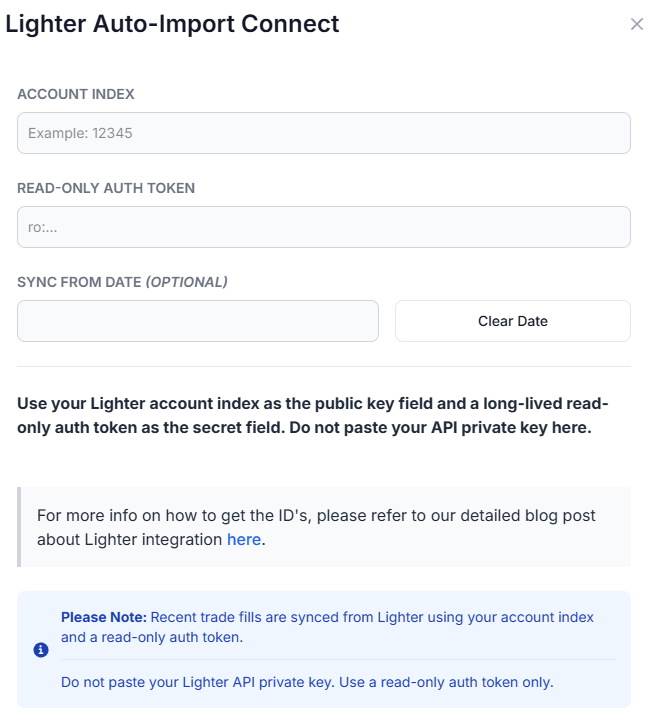
Once you select your trading account and broker as "Lighter" in the trade auto-import page, a popup box will appear when you click on the "Connect account" button.
The purpose of this blog post is to guide you in establishing a Lighter connection on TradesViz.
Important: TradesViz uses a read-only Lighter auth token for auto-sync. Do not paste your Lighter API private key into TradesViz.
Here are the steps you need to follow:
- Log into Lighter and review the official documentation (docs.lighter.xyz/trading/api#api-keys).
- Find the Lighter account index for the account or sub-account that you trade from.
- Create or obtain a long-lived read-only auth token for trade history access. Read-only tokens are intended for data access and should not be able to place orders.
- In TradesViz, go to the Import page, open the Add auto-sync connection tab, select your trading account, and choose Lighter as the broker.
- Enter your Account Index in the API/Public Key field.
- Enter your read-only auth token in the Secret/Private Key field. Do not enter your Lighter API private key.
- Select the sync-from date if you want TradesViz to start from a specific date, then click Connect.
Once connected, you can click on sync in the connections list to fetch available Lighter trades. All our syncs run automatically, and you are also able to manually trigger the sync at any time.
Note: This connection only uses read-only access for your Lighter trade history. We do not request trading or transfer permissions.
That's it! Please let us know if you have any questions or concerns about the Lighter auto-sync integration by sending us an email at support@tradesviz.com.
Important Notes About Auto-Sync
- Auto-sync only brings in recent / new trades going forward. For older history, first do a one-time
manual file import from the Upload File tab, then enable auto-sync.
- TradesViz uses read-only access wherever the broker supports it. We never request trading,
transfer, or withdrawal permissions.
- Some brokers (OAuth-based) expire connections periodically and require you to reconnect.
Troubleshooting
- If the connection fails, double-check API keys / OAuth login and that required permissions are granted.
- Make sure the trading account in TradesViz matches the asset class (stocks vs. futures vs. crypto).
- If sync stops bringing in new trades, reconnect the broker from the Auto-Sync connections page.
Need Help?
Email support@tradesviz.com with your broker, the trading account name in
TradesViz, and a screenshot of the error.
If your broker is not yet supported for auto-sync, see our
supported brokers list or contact support to request it.
FAQ
Why are old trades missing after I connected auto-sync?
Auto-sync only fetches recent history. Import a historical CSV/Excel file first from the Upload File
tab, then enable auto-sync for new trades going forward.
How often does auto-sync run?
Connections are synced automatically on a recurring schedule (typically daily). You can also trigger a
manual sync from the Auto-Sync connections page.
Is auto-sync safe? Can TradesViz trade on my account?
No. TradesViz requests read-only access whenever the broker supports it. We do not place trades or move
funds. For OAuth-based brokers, the consent screen will show exactly which scopes are granted.
Full blog post
You can also read the original walkthrough on our blog: Lighter auto-sync guide.
Updated on: 17/07/2026
Thank you!